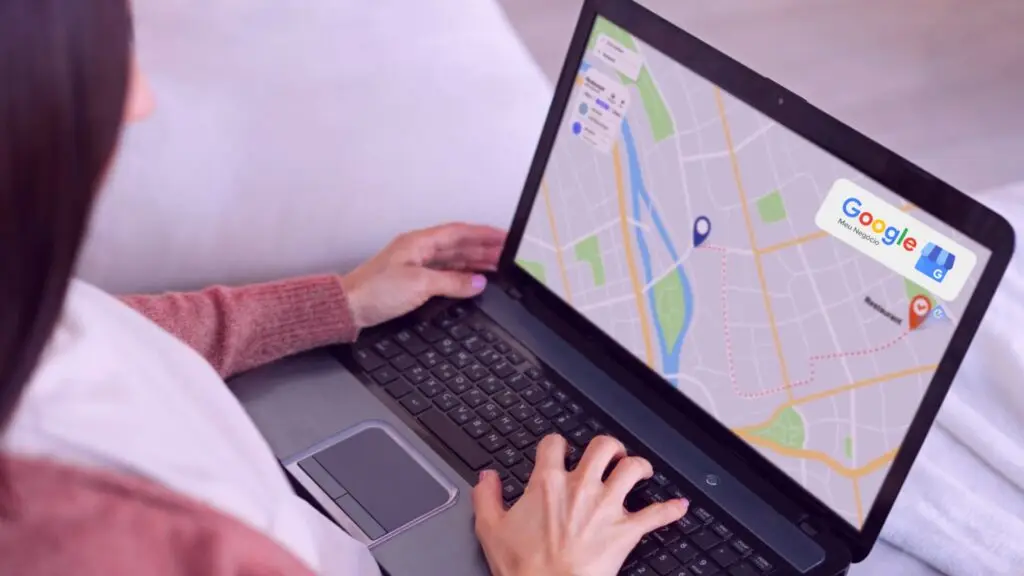

Having a strong online presence is essential for any business that wants to attract and retain customers. But with so many options available, where do you even begin? Google My Business (GMB), now known as Google Business Profile , is one of the most powerful and underutilized tools for ensuring your business is found by local customers. In this guide, learn how to create a Google My Business profile.
If you're not already using Google My Business, you're missing a valuable opportunity to improve your company's visibility.
In this detailed guide, we'll show you how to create and optimize your business profile on Google My Business, highlighting the information you should include and best practices for standing out in Google search results and Google Maps. Once created, it's an optimized Google Business Profile that sustains this prominence.
Ready to take your online presence to the next level? Let's get started!

What is Google My Business, now known as Google Business Profile?
Google My Business, now known as Google Business Profile, is a free tool that helps manage your company's online presence. With it, you can share important information such as your name, address, and hours of operation, add photos, respond to customer reviews, and understand how people are finding your business online.
This feature is essential for local businesses that want to be found by potential customers searching for services or products in their area. According to the Local Decision 2025 survey by Harmo and Reclame AQUI, 96% of consumers read reviews before choosing a store on Google.
Why did Google My Business change its name in 2021?
In 2021, Google announced that "Google My Business" would be renamed "Google Business Profile." This name change better reflects the tool's functionality, which focuses on helping businesses manage their online business profiles more efficiently. To review the tool from the beginning, see what Google Business Profile is.
The new nomenclature aims to simplify the user experience, making it more intuitive for business owners to understand the purpose and advantages of the platform.
👉Check it out: Local SEO: what it is and how to increase the chances of your company being found by local consumers.
Why use Google My Business? Advantages of the tool
- Digital reputation: What it is, and why it's important for businesses
- Voice of the Customer (VOC): What it is, and how implementing the methodology improves the customer experience
- Attract more customers: Businesses that add photos receive 42% more route requests on Google Maps and 35% more clicks to access their websites than those that don't add photos.
- Understanding and expanding your online presence: Google Insights allows you to track the performance of your profile, providing valuable data on how customers are interacting with your business.
Who can use Google My Business and who is it for?
This tool is ideal for businesses with a physical location or that provide services at the customer's location. If your business is exclusively online, Google My Business may not be the best option. Check here for more information to see if your business qualifies.
How to create a Google My Business account
1. Create your free account on Google My Business
- Go to google.com.br/business and click on “Get started now”.
- Sign in to your Google Account.
- Enter your company name and click "Next". You can select your company from the suggestions displayed.
- Enter your company's address and click "Next". Position the marker on the map.
- If you provide on-site service at the customer's location, follow the additional steps to define the delivery area.
- Select a business category and enter your company's phone number or website URL.
- Complete the registration and confirm your affiliation with the company.
Note 1: If you see the message “This listing has already been claimed,” click Request Access and follow the instructions to claim your business. Learn more about claiming ownership of a listing in GMN.
Note 2: It is very important that you keep your company information, or the information for the various locations you manage, complete and up-to-date.
2. Check your page by phone, mail, or in bulk
This step is necessary so that you can edit and manage your page on Google. You will be asked to choose a verification method; this is how Google confirms that you are the owner or an authorized representative. These are the two most common methods:
- By phone: Google will contact you to confirm the information you registered. The call will be made to the number you provided when registering your business.
- By mail: You will receive a letter with the code printed on it. The letter will be sent to the address you provided when registering your business. After receiving the verification code, go back to google.com.br/business. Log in and click on Verify location in the menu (or click the Verify now button). Then, follow the instructions to enter the verification code from your postcard.
- Bulk verification: If you want to verify 10 or more locations on Google, you can request the " bulk location verification " option . Follow this link to learn how to verify multiple establishments on the platform .
3. Resolve duplicate profiles before registering the company
When you type in your company name, GMN displays a list of companies, one of which may be yours. However, the platform may show two or more accounts for your company, which are not branches, but duplicates of the same location.
If this happens to you, do the following: go to Google Maps, search for the business you want to list, and look for the result that has the most complete or relevant information. Give preference to the account with the most reviews or photos. Now go back to Google My Business and list the chosen business following the steps provided by the tool. Your next step is to delete the duplicate listing.
4. Report duplicate locations on Google Maps
- Open Google Maps.
- Find and select the duplicate location.
- Click on Suggest a change.
- Select Remove this location.
- Select "Duplicate location" as the reason for removal.
- Click Submit.
Watch our webinar on how to correctly register your business on Google My Business.
How to make my business stand out with Google My Business
Managing your online performance through this tool will help more potential customers find your business on Google.
1. Keep your information updated
Make sure that information such as opening hours, address, phone number, and photos are always up to date. Outdated information can lead to missed opportunities.
Keep an eye on this information in your profile
- Opening hours;
- Physical address (if you change your address, you will need to go through the verification process again to confirm the new address)
- Phone number;
- Category;
- Website;
- Photos.
Here are some tips for profile picture types
- Photos of the exterior of the business help customers get to know the place. When taking the photo, try to capture the image according to what the customer sees when approaching your business.
- Interior photos help customers get a feel for the atmosphere of the place. Faithfully capture what it's like to be inside your business. Explore the various angles and details that can capture the essence of the establishment.
- Product photos: help customers get a better idea of what you do and offer. Show photos of your most sought-after products. Ensure that the images captured have excellent lighting.
- Team photos: they help showcase the more human side of your establishment. Show something a little less formal and more relaxed to humanize your company. The idea is to highlight the personalities of your employees and give an idea of who you are.
2. Interact with your customers through photos and responses
Share photos: Show the day-to-day life of your company. Real photos are more successful than stock photos.
Respond to comments: Interacting with reviews shows that you value your customers, increasing trust and attracting new clients.
👉Check it out: How managing online reviews impacts your social media planning
3. Factors that impact Google's local ranking
Want to appear in the top 3 of Google's local search results? Learn about the 3 main ranking factors that will help you achieve that:
- Relevance
- Distance
- Prominence
1. Relevance: how well your company matches the search
Relevance determines the best match between a local business and a user's search. Adding complete and detailed business information helps Google better understand your business and rank it according to its relevance to the consumer.
2. Distance: how close are you to the person you are looking for?
How close are you to the person searching for a particular business? Distance is the physical space between each potential search result and the location used in the search. Keep in mind that relevance will be the strongest signal. If a more distant business is more likely to offer what the consumer is looking for, Google will rank it higher than a closer business (which , according to Google's view, is less likely to satisfy the customer )
3. Prominence: how well-known is your business?
How well-known is your business? Prominence refers to a company's popularity. It's assessed based on the web information Google has about a business (such as links, articles, and directories). Its position in web search results is also included; therefore, SEO practices also apply to local search optimization.
👉Check this out: Want to appear in Google's local search results? Learn about the 3 main ranking factors that will help you achieve that.
4. Add owners and administrators
Share responsibilities by adding owners and administrators to your page and keep your online presence up-to-date. The users with whom you want to share access can have different access levels, and you can see more details at this link.
To add a property owner or administrator, follow these steps:
- Sign in to Google My Business.
- If you have multiple locations, open the one you would like to manage.
- Click on Users in the menu.
- In the upper right corner, click the “Invite new users” icon
- Enter the name or email address of the user you would like to add.
Note: If you are adding an agency to your location, you will need to include their location group code here (you may need to contact the agency and request this code). - Select the user's role: Owner, Administrator, or Site Manager.
- Click on Invite. Invitees will have the option to accept the invitation and immediately become users.
Watch our webinar on how to optimize your Google My Business presence to attract more customers to your physical stores organically.
How to fill out your business profile on Google My Business
The more complete and up-to-date your profile is, the higher your chances of ranking on Google. Below are some useful tips on the types of information you can add to your company's Google Maps listing:
Company name: use the exact name from the real world
Type your company name exactly as it is used in the real world. Tip: this name should be exactly the same in all places where your company has an online profile: TripAdvisor, Facebook, Website, etc. This makes Google realize that all the information refers to the same place and this strengthens your online presence.
Category: Choose the one that represents the main activity
Choose the option that best represents your main activity. You can choose up to 9 categories, but the category entered in the first field will be considered the main one. If you have multiple locations, they should all share the main category. Tip: Don't use categories solely as keywords or to describe some attribute of your business. You might miss opportunities by doing so.
Address: Please provide the complete and exact address of the store
Enter the complete and exact address of your business location. If you do not serve customers at your address, leave the field blank. Do not include information such as "Corner of Av. Presidente Vargas and Av. Rio Branco" or "Facing Praça do Diário". Remember: If you change your address after requesting verification, you will need to verify your business again.
Normal operating hours and special hours
Inform your customers of your normal operating hours. It's also possible to set special operating hours for holidays, for example. Some types of businesses should not disclose their operating hours, such as hotels and similar types of accommodations, those with varying hours (such as schedules for different types of activities, including presentations, religious services, or classes), and those that operate only by appointment.
Website and phone number directly linked to the company's location
Enter a phone number that is most directly related to your business location or provide a corresponding website. Tips:
- Prefer using a local phone number instead of a call center number.
- Do not provide phone numbers or URLs that redirect users to landing pages, or phone numbers that do not actually belong to the company, including pages created on social networking sites.
- The phone number needs to be controlled directly by the company.
Attributes: more information about what the company offers
Attributes provide customers with more information about your business (for example, "Has Wi-Fi," "Has outdoor seating," etc.). You can edit some concrete attributes (such as outdoor seating). However, subjective attributes, such as whether the business is known by locals, are related to the opinions of Google users who have visited it.
Photos and videos created to showcase products and services
Add your own company photos to showcase your products and services to people who are looking for what you offer. Explore a variety of photos to highlight features of your business that customers consider when making purchasing decisions.
Description: Briefly and objectively describe the company
Be as brief and objective as possible and talk about what your company offers, what differentiates it from the competition, its history, or other information useful to customers. Note: the description is not the place for information about promotions, prices, or sales. Focus on what makes your company unique.
An example of a description cited by Google itself
"Our artisanal ice cream shop is located just a few meters from the city center and receives a large flow of people who meet friends for ice cream or pizza. We deliver. We have 35 flavors of homemade ice cream and sorbets served by hand all year round. We also serve a delicious thin-crust pizza with a crispy edge every day starting at noon. We're waiting for you!"
Menu or services for food, health and beauty
If you are a food and beverage or health and beauty business, this option will appear for you. List your menu items or services with their prices. Group them into sections to keep the menu organized. When customers find your profile, they will see your items under “Menu” or “Services”.
Now that you know what information to enter in your GMN profile, see how to change or update that information.
How to edit your profile's business information
Sign in to Google My Business.
- If you have multiple locations, open the one you would like to manage.
- In the menu, click on Information.
- Click on the section you want to change and enter the new information in the box that appears. To remove a section, click the X next to it. Remember:
- Removing previously added information can take up to 60 days.
- It is not possible to remove information that is also publicly available or has other sources.
- It is also not possible to remove editorial summaries or web keywords that are displayed alongside your business.
- Click Apply.
Conclusion: How to create a Google My Business profile and grow your business
Google My Business is a powerful tool to increase your business's online visibility. Keep your information up-to-date and respond to reviews to improve your reputation and attract more customers. To go beyond simply registering, see how to highlight your business on Google My Business.
Did you find this content helpful? Then share it on your favorite social network!
Any questions? Leave them in the comments below =)
Frequently asked questions about creating a Google My Business profile
Go to google.com.br/business, log in to your Google Account, and enter your business name, address, and category. Then, add your phone number or website, complete the registration, and verify your profile by phone, mail, or in bulk. Only after verification can you edit and manage your store's information.
Yes. Creating and maintaining a Google My Business profile, now Google Business Profile, is free. You only need a Google Account and a business with a physical location or that serves customers in person. Exclusively online businesses are not the ideal audience for the tool, according to Google's own guidelines.
Each store needs its own profile, with the correct name, address, phone number, and hours of operation. For chains with 10 or more locations, Google offers bulk verification, which validates multiple establishments at once. Use the same name and category format across all locations and add owners and administrators to share management responsibilities.
Access google.com.br/business using the same Google Account you used to register. If you have multiple locations, open the one you want to manage and click on Insights to edit the data. To share the work with your team, invite other users as owners, administrators, or managers of the business profile.
The most common mistakes are having duplicate profiles for the same store, using a different name than the one used in the real world, providing an incomplete address, and registering phone numbers from call centers that don't belong to the location. Incorrect information confuses the customer and harms your ranking in local search results, so review your profile whenever something changes.
About Harmo: Drive-to-Store retail infrastructure
Harmo is the Drive-to-Store for physical retail. The Harmo Platform integrates digital presence, reviews, and surveys into a single system that transforms the voice of the customer into more traffic for the store. It has over 24,000 stores and more than 200 clients, with an average rating of 4.7 stars and an 87% response rate to reviews.